We were given an InDesign document to look at and in small groups find 8 mistakes based on the things that we have learned over the previous session. Mistakes including colour, images etc.
1st mistake:
Ink limit on the last page on the text 'back cover' is over the limit. This is because the registration has been changed to black.
2nd mistake:
Two of the pantone colour swatches haven't been used within the document
3rd mistake:
The light blue swatch is an RGB colour swatch
4th mistake:
One of the images within the document has a missing link and has not been saved previously
5th mistake:
Another image has been scaled down when brought onto InDesign to 15% meaning the DPI is now close to 2000 instead of 300
6th mistake:
Another image 'bird 5' has only 72 DPI instead of the desire 300
7th mistake:
The background on the front page doesn't have bleed
To edit an image that has been used on InDesign easily, go on 'get info' and change the option 'open with' to photoshop so that it takes you straight to Photoshop when you edit it through InDesign.
A quick way to see what mistakes are made within a document you can select, File and package and this will produce a summary for you with the issues raised on the document.
You can also choose the links and images option and this will show you what colours have been used and details of them etc.


 'Sepetations preview' allows you to see the values used for the individual colours, cyan, magenta, yellow and black.
 This is cyan only.
 Cyan and magenta.
 Cyan, magenta and yellow.
 Cyan, magenta, yellow and balck.
 Cya, amgenta, yellow, black and the spot colour.
 When printing,if you select seperations then the values of each colour will be printed out and each individual colour will be printed onto an individual page.
 Knocking out and overprint
 This is the outcome when overpprint preview is on, instead of blocking the colour out it allows you to see the tone of the two colours placed ontop of one another.
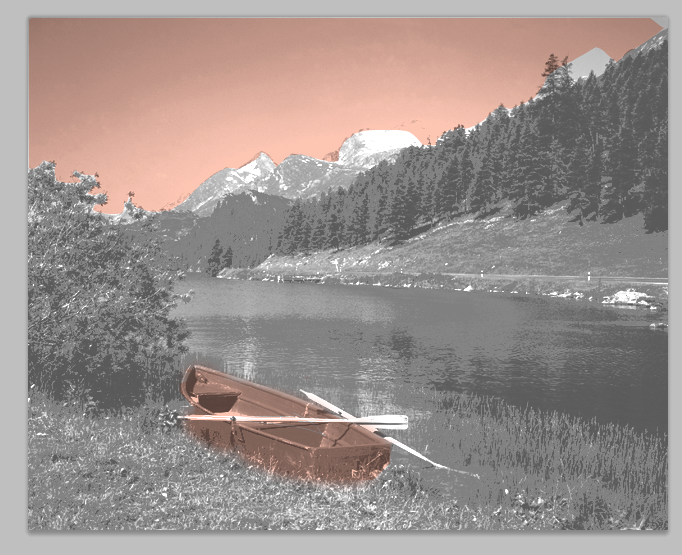
 View- gamut warning- the grey shows problem areas, areas in which would cause a problem when you come to print because they are not within the CMYK gamut.
 you can tweak/ adjust the image to lessen the non printable colours.
 You can do this by image- adjustments and changing the hue and saturation.
 likewise, you can use the replace colour option, choosing a section on the image and adjusting the colour to a suitable printable colour.
 Another option to alter these colours is to proof colours. The title will read RGB/8/CMYK.
 Swatches
 When choosing a colour if you pick one which is outside of the gamut then this small warning sign will appear next to the square of colour informing you of this, therefore allowing you to choose another colour.
 When this warning sign appears, by clicking on the small square under the warning sign, this will pick a colour as similar to you choice but within the gamut. Therefore when you proof colours it shouldn't change because its in the printable range.
 To delete current swatches hold alt and click the swatch. You can then add your own swatches.This can be done from the foreground colour along the left hand side tool bar. When in this option simply choose your colour and click add to swatches.
 A spot colour- creates consistency, allows you to choose a colour outside of CMYK, it is also cheaper if you are using only two colours only using two printing plates.
 As it is a duotone, select a second colour to work with your first. By changing the curve, you can change the levels of the colour and how much of each colour is shown.
 Duotone image
 Channels- a channel shows how a CMYK image is made up, shows the amount of each level.